Your video's edit page
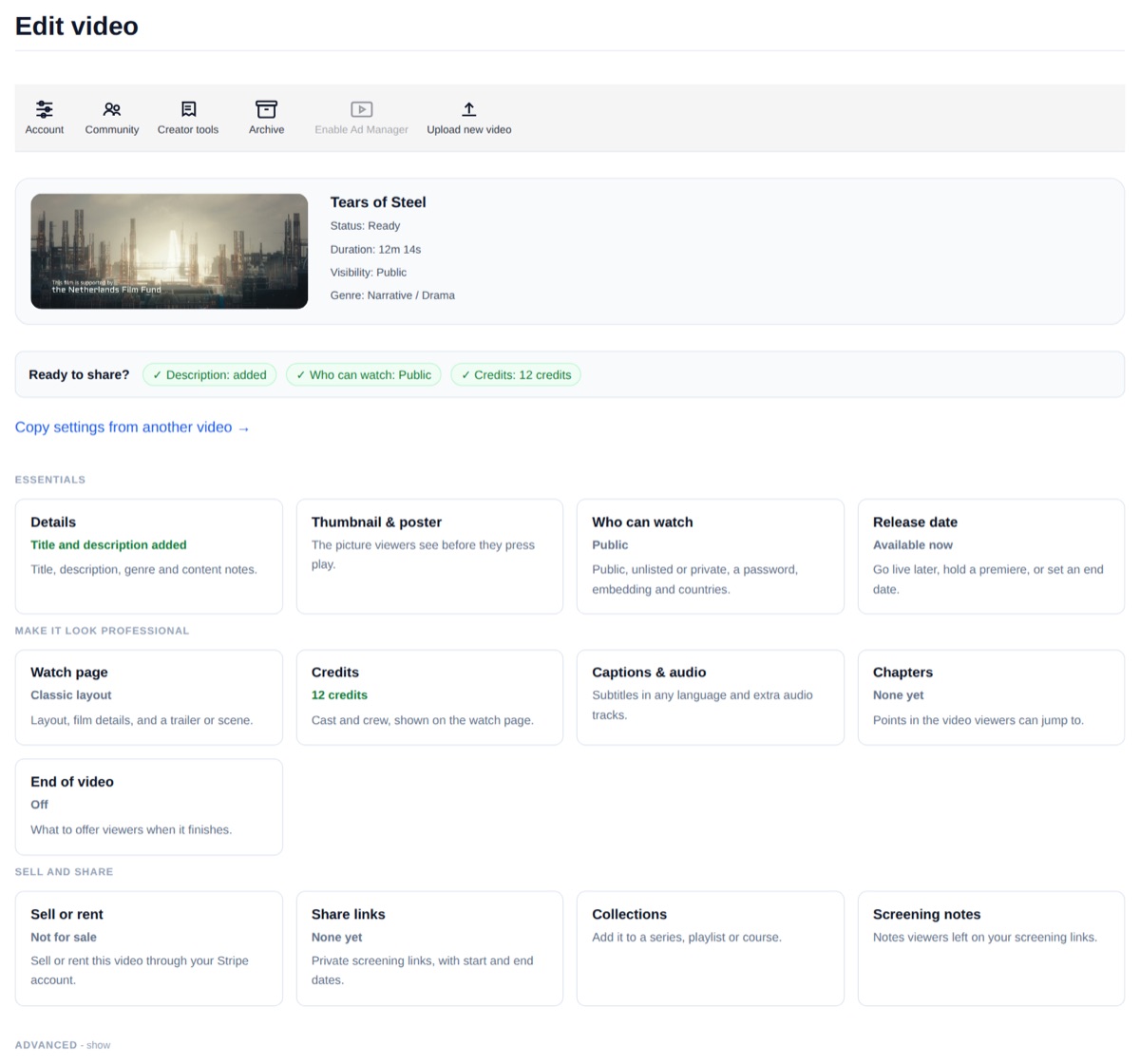
Everything about a video lives on its edit page. Open it from your dashboard or library with Edit. At the top you'll see the video, its status, and a Ready to share? line that shows whether the description, who can watch and credits are set.
Copying settings from another video
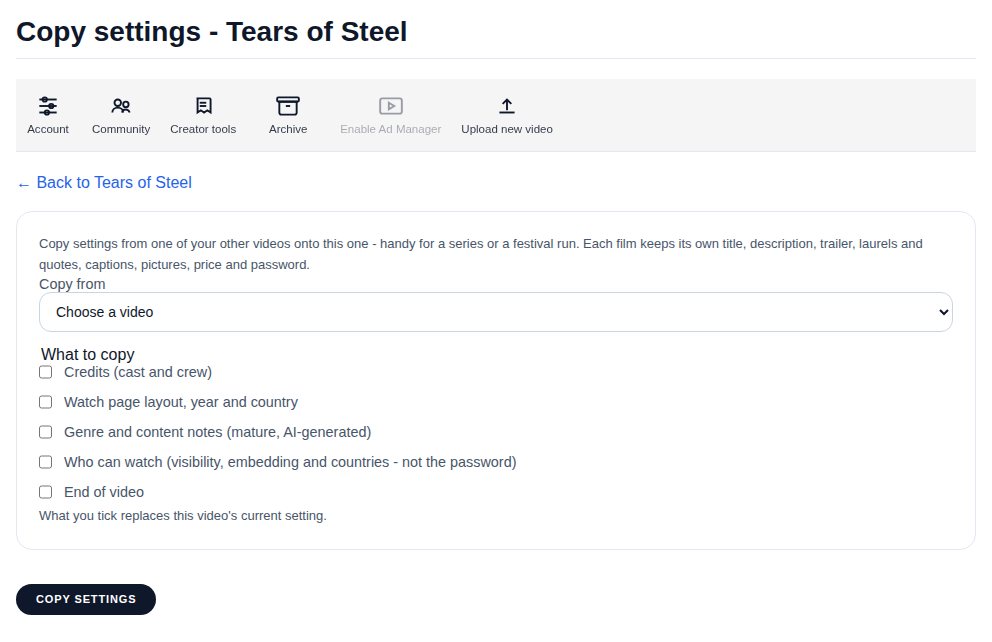
Under Ready to share?, choose Copy settings from another video. Pick one of your other videos and tick what to copy: credits; the watch page layout, year and country; genre and content notes; who can watch (visibility, embedding and countries); and the end of video. Handy for a series or a festival run. What you tick replaces this video's setting. Each film keeps its own title, description, trailer, laurels and quotes, captions, pictures, price and password.
To change several videos in one go instead, see Changing several videos at once.
Each card shows its current setting, for example "Public", "12 credits" or "Classic layout", so you can see what's done without opening it. The cards are in four groups.
Essentials
- Details - title, description, genre and content notes.
- Thumbnail & poster - the picture viewers see before they press play. See Choosing your thumbnail and poster.
- Who can watch - public, unlisted or private, a password, embedding and countries. See Visibility settings.
- Release date - go live later, hold a premiere, or set an end date.
Make it look professional
- Watch page - the page layout, film details and a trailer or scene. See Watch page layouts, trailers and scenes.
- Credits - cast and crew. See Credits.
- Captions & audio - subtitles and extra audio tracks. See Adding captions and subtitles.
- Chapters - points viewers can jump to. See Adding chapters to your video.
- End of video - what to offer viewers when it finishes. See End of video.
Sell and share
- Sell or rent - through your own Stripe account. See Selling and renting videos with Stripe.
- Share links - private screening links with start and end dates. See Creating and configuring share links.
- Collections - add it to a series, playlist or course.
- Screening notes - notes viewers left on your screening links. See Collecting screening notes.
Advanced (select it to show)
Creator's notes, Video fixes, Replace video, Version history and Advanced settings. Most videos never need these. See Video Fixes - overview and Replacing a video file.
Some cards are on the Creator and Pro plans only; on the Free plan they show which plan they need.