Watch page layouts, trailers and scenes
Choose how your film's watch page looks, add its year and country, and give it a trailer or a scene. Layouts and trailers are on the Creator and Pro plans.
The four layouts
- Standard - the page as it has always been: the film, then its details and actions.
- Classic - the film's details beside the film, with the full credits below. Suits documentaries and archive films.
- Feature - a wide film with its title and details over the picture until it plays.
- Screening room - a dark screening room: the film with a quiet row of facts beside it. It stays dark even for viewers who use the light theme.
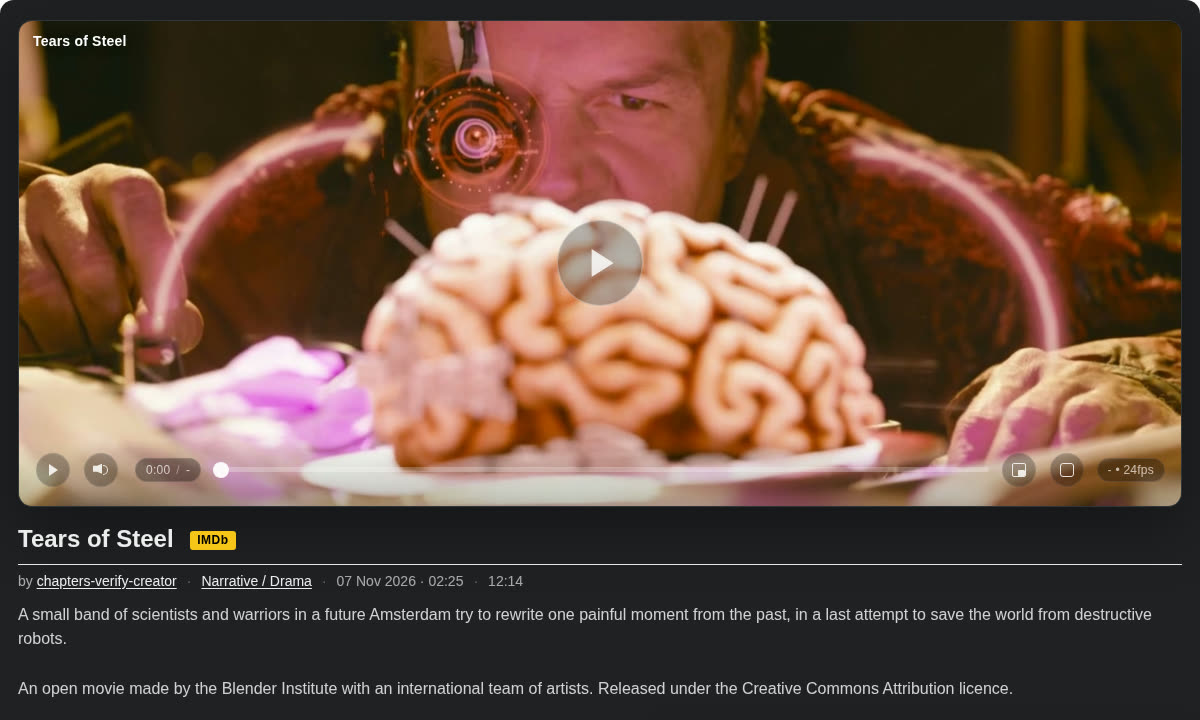
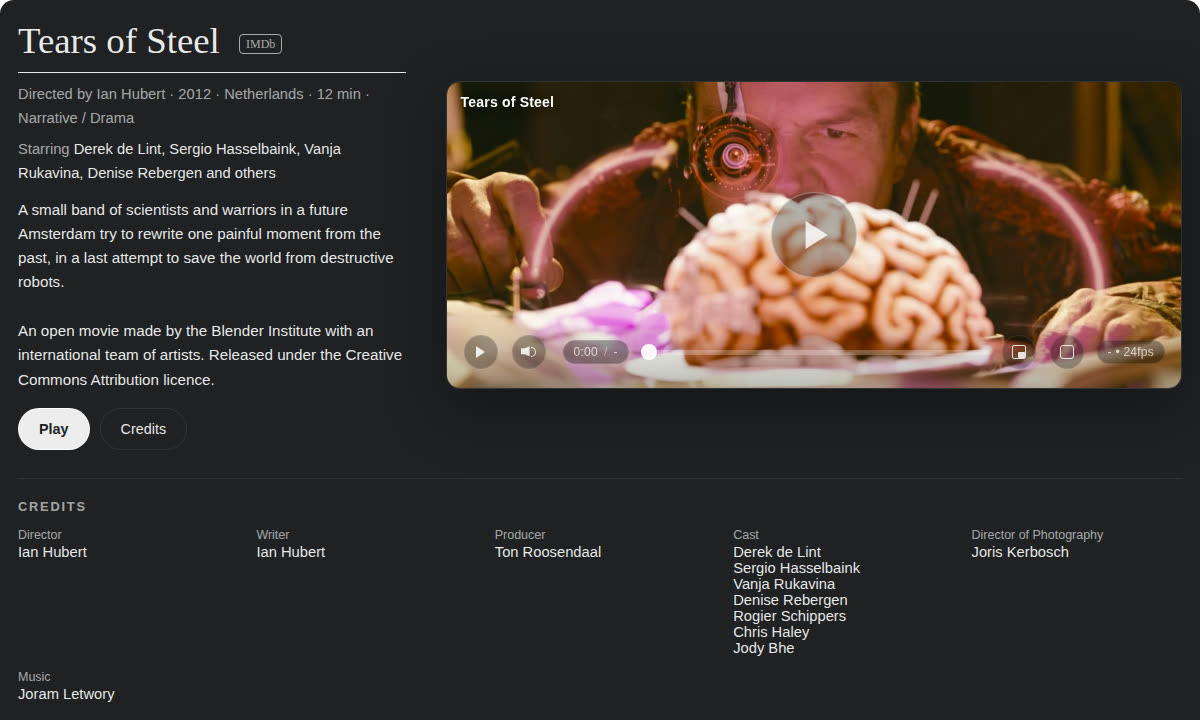
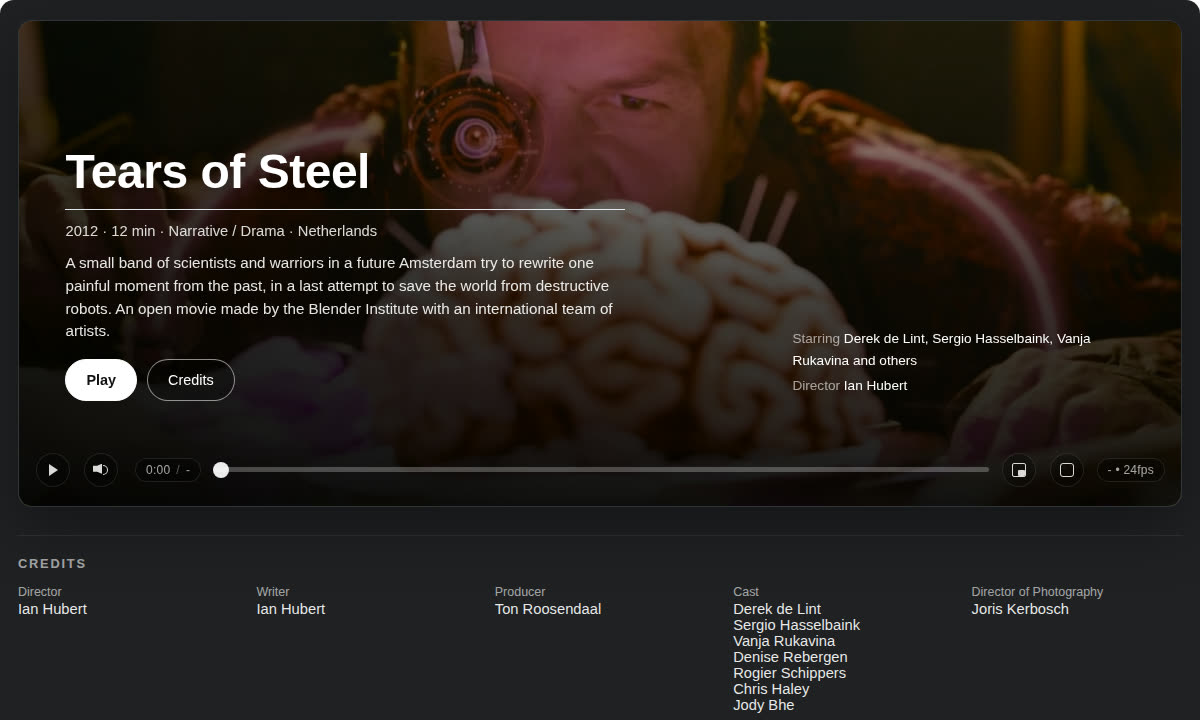
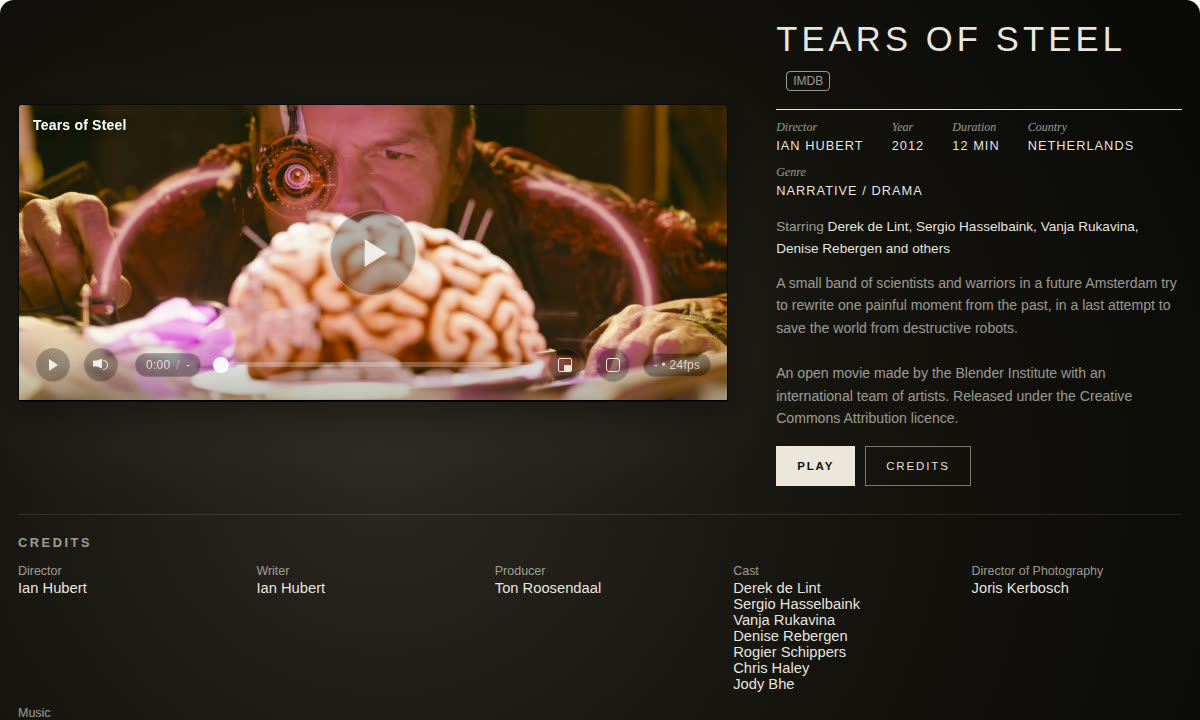
The player itself is the same in every layout. Viewers' own light or dark choice applies everywhere except the Screening room.
Setting a layout
- For all your videos: go to Settings → Your public page and choose Default page layout for your videos. If you run more than one channel, each channel has its own default.
- For one video: open the video's edit page and choose Watch page. Every video starts on Use my default; pick one of the four layouts to use a different one for that video.
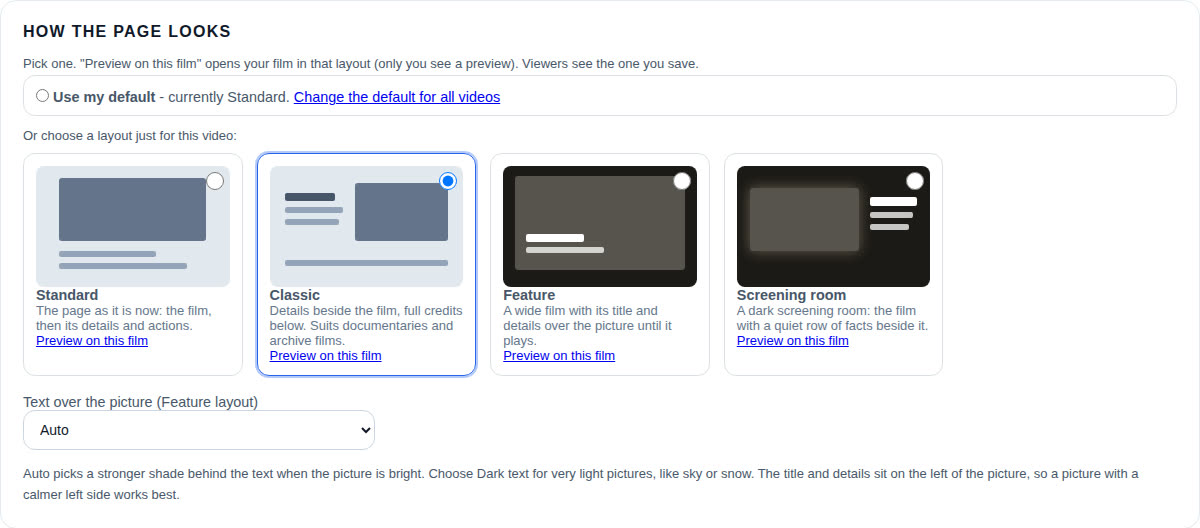
Previewing
On a video's Watch page settings, each layout has Preview on this film. It opens your film in that layout with a small tag in the corner - only you see a preview. Viewers see the layout you save.
Year, country, director and cast
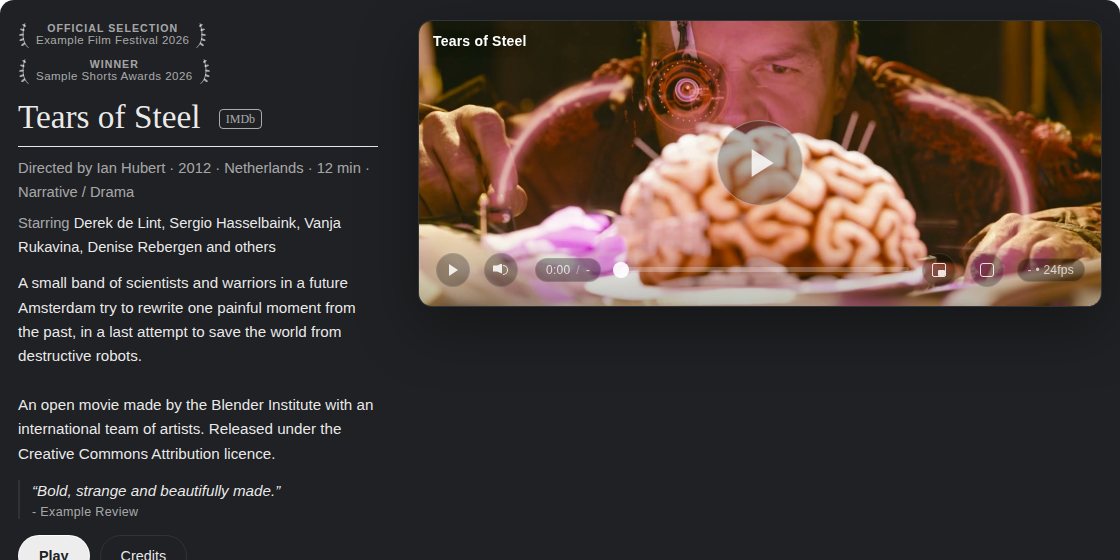
Add the year and country on the Watch page settings. The director and cast come from the video's credits: roles such as Director, Cast or Starring are picked up automatically. All of these show in every layout except Standard.
How your film appears in search engines
Every public film's page also describes the film to search engines in the format Google reads for video results: title, description, picture, length, upload date, director and cast, genre, year, country, festival laurels, its trailer, and whether it's free to watch. That gives Google what it needs to show your film as a video result, though no one can promise where it ranks. This happens on every plan. Private, unlisted and password-protected videos, films not released yet or past their end date, and films with the watch page hidden are never described to search engines.
Festival laurels and press quotes
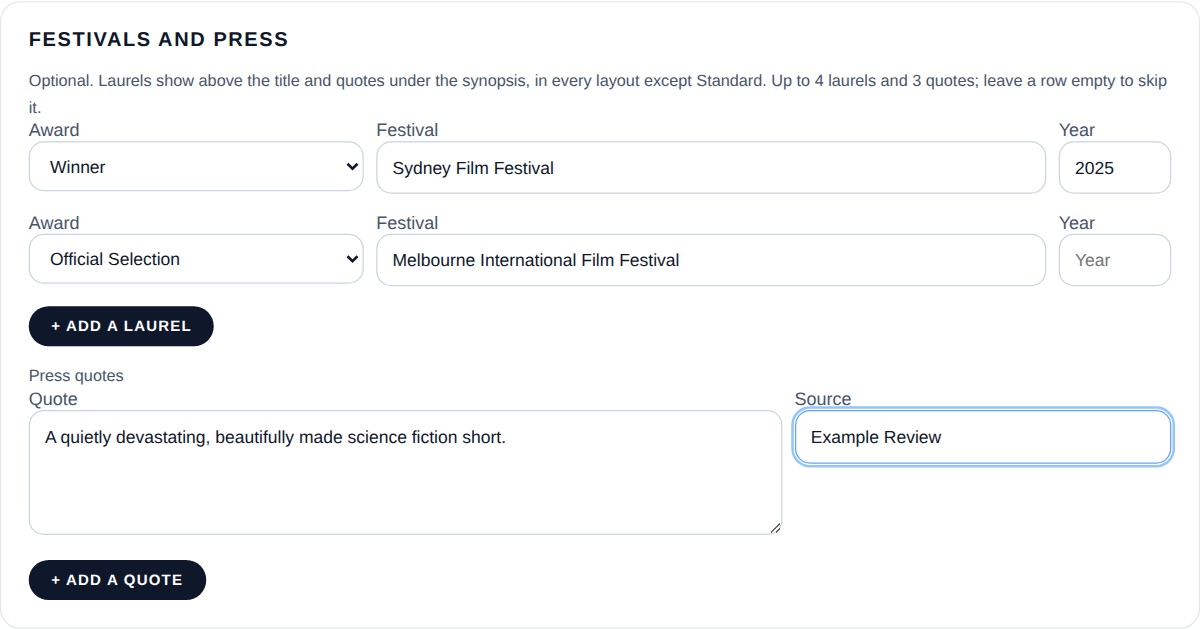
On the Watch page settings, under Festivals and press, add up to 4 laurels (Official Selection, Winner, Nominee, Special Mention or World Premiere, with the festival and year) and up to 3 press quotes with their source. Choose + Add a laurel or + Add a quote for more rows; empty rows are skipped. Laurels show above the film's title and quotes under the synopsis, in every layout except Standard.
Accent colour
Choose a colour for the main buttons on your film pages in Settings → Your public page, under Accent colour for your film pages. The colours are chosen so the button text always stays readable, in light and dark. Each channel has its own.

Text over the picture (Feature)
In the Feature layout the title and details sit on the left of the picture. Auto adds a stronger shade behind the text when the picture is bright. For very light pictures, like sky or snow, choose Dark text. A picture with a calmer left side works best.
Trailers and scenes
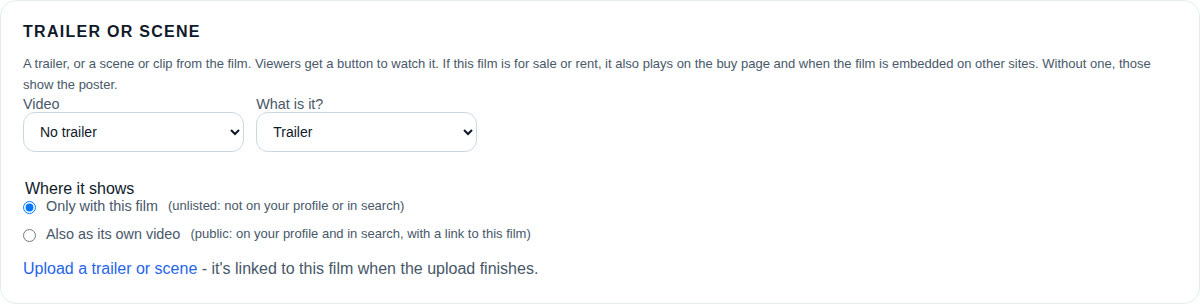
Give a film a trailer, or a scene, clip or teaser from it. Viewers get a button to watch it on the watch page. If the film is for sale or rent, it also plays on the buy page and when the film is embedded on other sites; without one, those show the poster. If you've set a free preview for the buy page, the buy page shows the preview instead.
- Adding one: on the Watch page settings, choose Upload a trailer or scene (it's linked to the film when the upload finishes), or pick one of your existing videos.
- Where it shows: Only with this film keeps it unlisted (not on your profile or in search). Also as its own video makes it public, and its own page links back to the film with Watch the film.
- Removing it: choose Remove from this film. The trailer video itself is kept; you can edit or delete it like any video.
A trailer has to be your own video, watchable by anyone (public or unlisted, no password), allowed to be embedded, and not for sale itself. If you change it later so it no longer fits (for example you make it private), the film shows its poster instead, and the Watch page settings tell you why.
Press kit page
Turn on a one-page press kit for festivals and journalists from the same settings. See A press kit page for your film.
Paid films embedded on other sites
When a film you sell or rent is embedded on another website, viewers who haven't paid see its trailer or poster, the price, and a button to buy or rent on Long Play. Payment and watching happen on Long Play.
If you move to the Free plan
When a paid plan ends you keep Creator features for 30 days. After that your films show the Standard page and their trailers stop showing. Nothing is deleted: your choices come back if you subscribe again.