Collecting screening notes
Screening notes let you ask viewers to share their thoughts after they finish watching - useful for gathering client feedback, collecting festival notes, or just hearing what your audience thinks.
Two minutes: a screening link with email invites, a watch window, viewer notes and a watermark with each viewer's email.
The video's script is available to download, so it can be translated for better understanding: as subtitles with timings (.srt) or as plain text (.txt).
Screening notes are a Creator plan and up feature. Turn on Invite viewers by email and Allow viewer notes when creating a share link, then invite each viewer by email. Notes come from invited viewers only, so you always know who sent each one. When playback completes, the viewer sees a short prompt and a text field. Their note comes to you by email - either immediately, or grouped with other notes from that link in a digest.
Viewers can optionally attach a timecode to their note to point you to a specific moment in the video. Each viewer can leave one note per session. Once submitted, it can't be edited or deleted.
View all received notes at Dashboard → Screening notes (/me/notes). Timecodes in that list are clickable - they open the video at that exact moment so you can see exactly what the viewer was watching. You can clear notes once a project is complete.
Client approval
If you send a share link as an invite (not a copy link), the viewer sees an Approve button on their watch page. Clicking it marks the link as Approved and sends you an email notification. You can see the approval status for each link on the video's Share links page.
Per-video notes view (Creator plan and up)
On the Creator plan and up, each video has a dedicated notes page at /me/videos/{id}/notes - also reachable from the Screening notes card on the video's edit page.
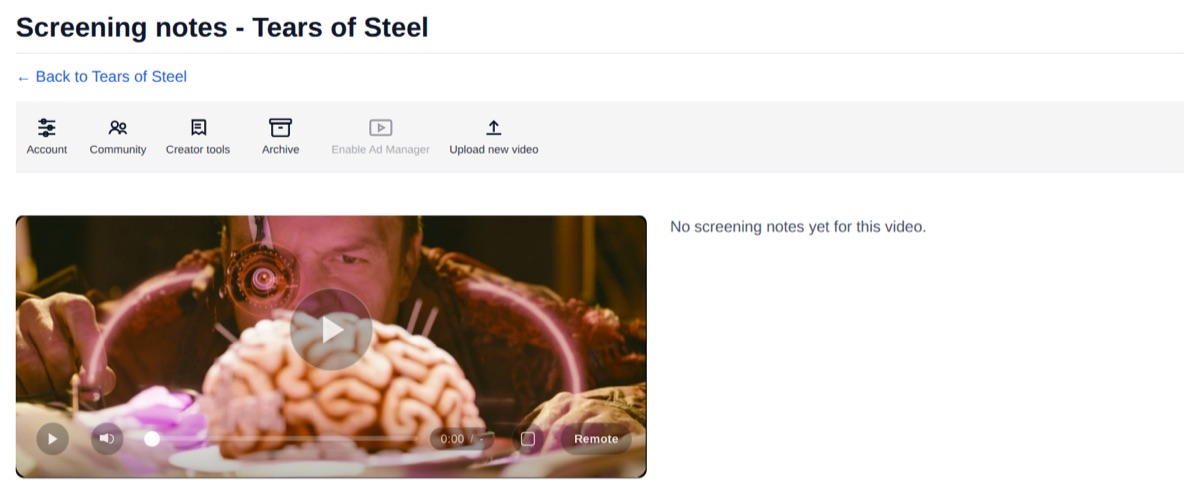
This view shows your video player on the left (sticky while you scroll) and your notes grouped by share link on the right. Each note that has a timecode attached shows a clickable button - tap it to jump the player straight to that moment without scrubbing.
You can also set a Review status for each share link group - Pending, In review, or Approved - on this page. Invited viewers can also set this to Approved themselves using the button on their watch page.