Selling and renting videos with Stripe
You can sell or rent a single video, or sell a whole course as one purchase, through your own Stripe account. This is a Creator plan and up feature.
Long Play uses Stripe only. You connect your own Stripe account once, and Stripe takes each buyer's payment and pays it to you. Long Play never handles the money, and takes no cut.
Watch: renting your film in 3 steps
A video of under two minutes showing the whole thing, from connecting Stripe to a viewer pressing play.
The video's script is available to download, so it can be translated for better understanding: as subtitles with timings (.srt) or as plain text (.txt).
Watch: selling your film, and watching it on any device
Under two minutes: setting a price, what a buyer sees at checkout, and how they unlock the film on their phone.
This video starts from an account already connected to Stripe. To connect Stripe first, see the renting video above - the steps are the same for selling.
The video's script is available to download, so it can be translated for better understanding: as subtitles with timings (.srt) or as plain text (.txt).
Step 1: Connect Stripe (once)
- Open Sell with Stripe from the Creator tools menu on your dashboard.
- Select Connect Stripe. Stripe hosts the setup form: you'll enter your business or personal details, your bank account, and confirm your identity. Long Play never sees these.
- When you finish, you're brought back to Sell with Stripe. It shows Connected once Stripe has confirmed your account can take payments.
If Stripe still needs something, the page shows Setup not finished. Select Finish Stripe setup to continue. You can't sell until the page shows Connected.
One connection covers every video and course you sell.
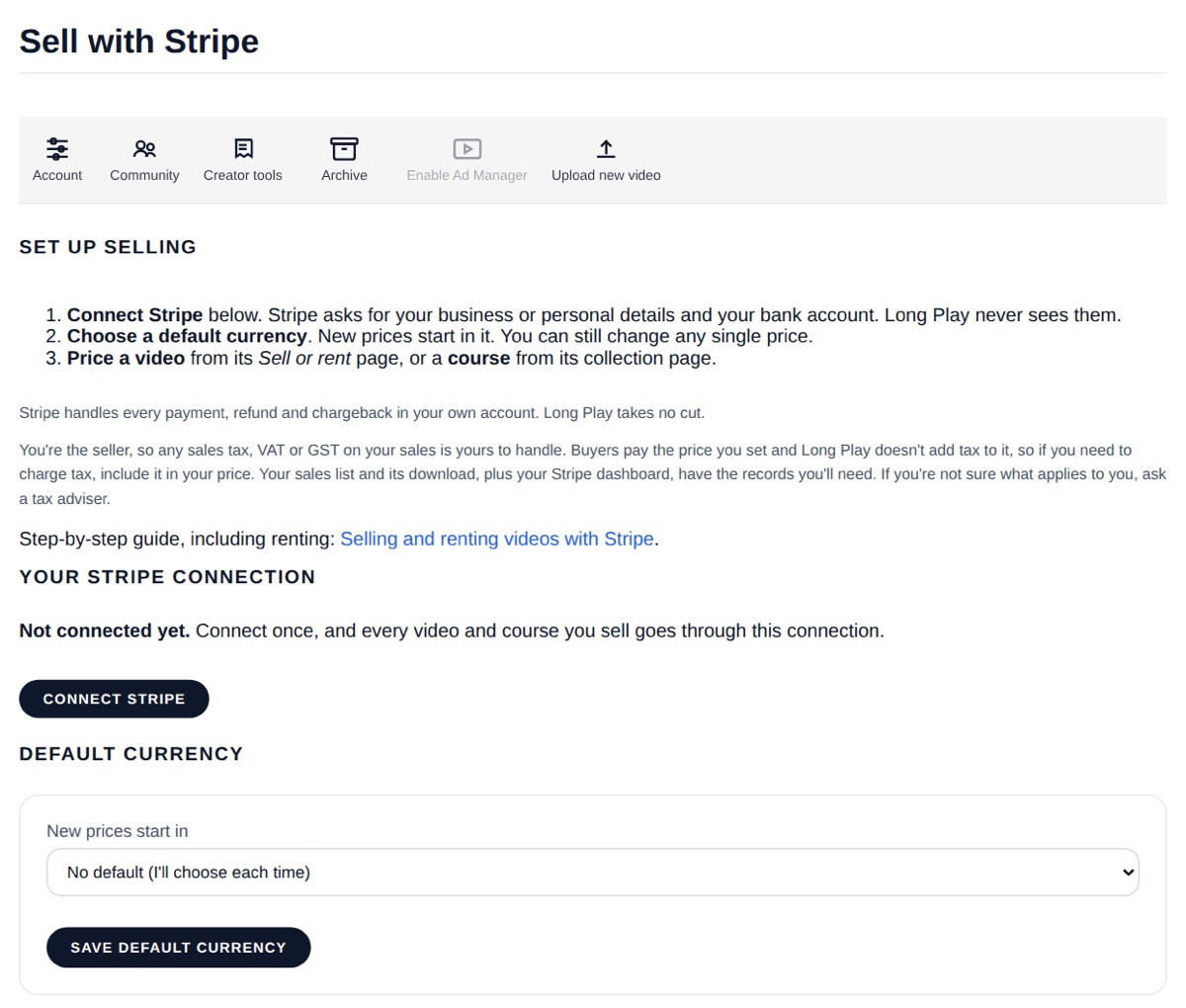
Step 2: Choose a default currency (optional)
On Sell with Stripe, choose a currency from the list under Default currency. New prices start in that currency. You can still choose a different currency for any single price.
Prices are charged in the currency you choose for that item. Each buyer pays in that currency. A video's sale and rental prices use the same currency. The currencies offered are Australian, Canadian, Hong Kong, New Zealand and Singapore dollars, euros, pounds, Swiss francs, Swedish krona and US dollars.
Stripe has a lowest price it can charge in each currency, for example 0.50 in US or Australian dollars and euros, or 0.30 in pounds. A price below it can't be saved.
Step 3: Price a video or a course
- A single video: open the video's Sell or rent page. Under Sell this video through Stripe, enter a price and choose its currency, then save. You can offer a sale, a rental, or both, on the same video. To rent it, enter a rent price and choose how long the rental lasts: 24 hours, 48 hours, 3 days, 5 days, 7 days, or a custom number of hours or days of your own. The clock starts from the viewer's first play, not from when they pay.
- A course or series: see Selling a course or series as one purchase.
- A free preview (optional): on the same Sell or rent page, let people watch the opening or a scene before they pay. See Giving a free preview of a paid film.
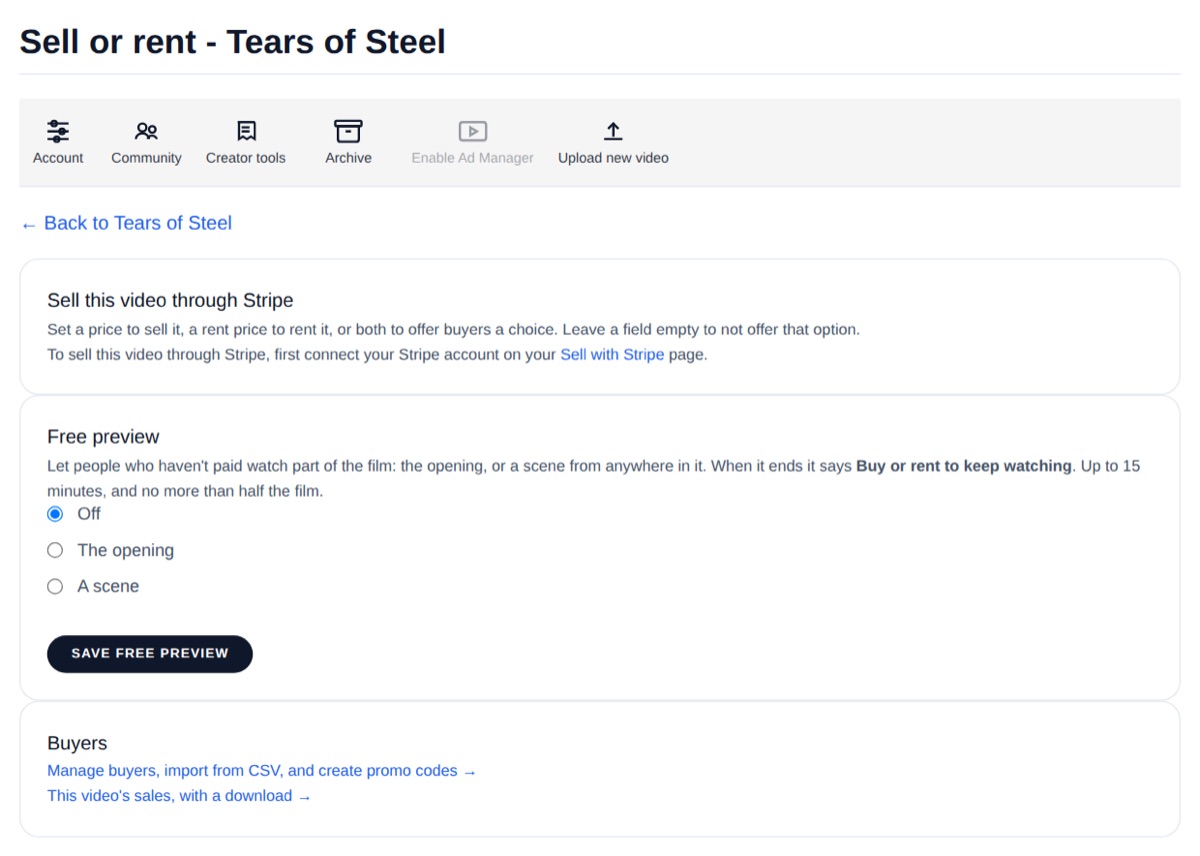
A For sale / Not taking new sales / Not for sale (and the same for renting) label above each price field always shows the real current state, so you never have to guess from the price field alone.
Stopping sales. Once a price is set, two buttons sit under it:
- Stop new sales / Stop new rentals - nobody new can buy or rent, and the film stays locked. People who already bought it keep watching, and renters keep watching until their rental ends. Viewers without access see that it isn't available to buy or rent right now. Press Resume sales / Resume rentals to open it again.
- Remove price / Remove rental price - takes the price away. If there's no other price left, the film becomes free to anyone who can see it. Clearing the price field and saving, or entering
0, does the same. Long Play tells you which of these will happen before you confirm.
To take a film off sale for a while (a festival exclusive or a distribution deal, say), use Stop new sales, not Remove price.
What buyers see
The video's page shows its real price before anyone pays - "Buy to watch - $19.99 AUD" or "Rent to watch - $5.99 AUD" - using whichever price actually applies (the video's own, its course's default, or the whole course's price if that's the only way it's sold). A viewer whose rental has expired and comes back later sees "You previously rented this" instead of a blank paywall.
Buyers pay on Stripe's checkout page. They then receive an email with a link to watch, and enter the email address they paid with. The first time a purchase is used on a new device, Long Play emails a 6-digit code to that address, so only the person who paid can use it. A signed-in member whose account email is verified unlocks automatically on return, with no email to enter. Each purchase works on up to five devices in any 30 days. The email also includes a link to sign out a device they no longer use.
Someone can only buy or rent a video they'd be able to watch: not while it's private, not yet released or expired, or if it isn't available in their country.
What Stripe charges
- Stripe's processing fee is taken from each payment before it reaches you. Long Play adds no fee of its own.
- The fee depends on your country and the currency. Stripe shows the exact fee on each payment in your Stripe dashboard. Stripe's current rates are on its own pricing page.
- Currency conversion: if your Stripe account pays out in a different currency from the price, Stripe may charge a currency conversion fee.
- Refunds and chargebacks are handled in your Stripe account, under Stripe's own terms for fees on them.
- Tax: you're the seller, so any sales tax, VAT or GST on your sales is yours to handle. Buyers pay exactly the price you set: Long Play doesn't add tax to it, collect it or pay it for you, so if you need to charge tax, include it in your price. The sales list on Sell with Stripe (and its CSV download) and your Stripe dashboard have the records you'll need. If you're not sure what applies to you, ask a tax adviser.
Refunds and disputes
Refunds and chargebacks are handled in your own Stripe account. A full refund or a chargeback removes the buyer's access automatically. If you win the chargeback, their access comes back. A partial refund keeps their access.
Changing or removing a price
You can change a price at any time. A buyer who already paid keeps their access regardless of a later price change. Disconnecting Stripe on Sell with Stripe stops new sales straight away. It doesn't remove access for people who already bought or rented.
Deleting a video is different: everyone who bought it, or is still in a rental, loses access. Long Play shows you how many sales and active rentals it has before you confirm, and restoring the video within 8 days gives their access back. See Deleting and restoring a video.
Your sales
Sell with Stripe lists your sales. Narrow them down by channel, by title (one video or course), and by period: this month, last month, this year, last year, all time, or dates you choose. You'll see how many sales and refunds there were and what you took in each currency, and Download these sales (CSV) gives you exactly that list as a spreadsheet. Each video's Sell or rent page and each course page also link straight to their own sales.
Each row shows the date, whether it was a purchase, rental or course, the title, its channel, the amount, whether it was refunded, whether the buyer can still watch, and the order number. Times are in your account's time zone (set it in Settings), or your browser's if you haven't chosen one.
Long Play doesn't keep buyers' email addresses. The order number is Stripe's own payment ID, so you can see who bought by searching that number in your Stripe dashboard, or by exporting Payments from Stripe and matching the IDs in a spreadsheet.
Rows without an order number are access you added yourself, gifts and promo codes. Sales from before 24 October 2026 show the amount as "See Stripe". A partial refund keeps the buyer's access, so it still shows as Paid - Stripe has the refunded amount.