Uploading a video
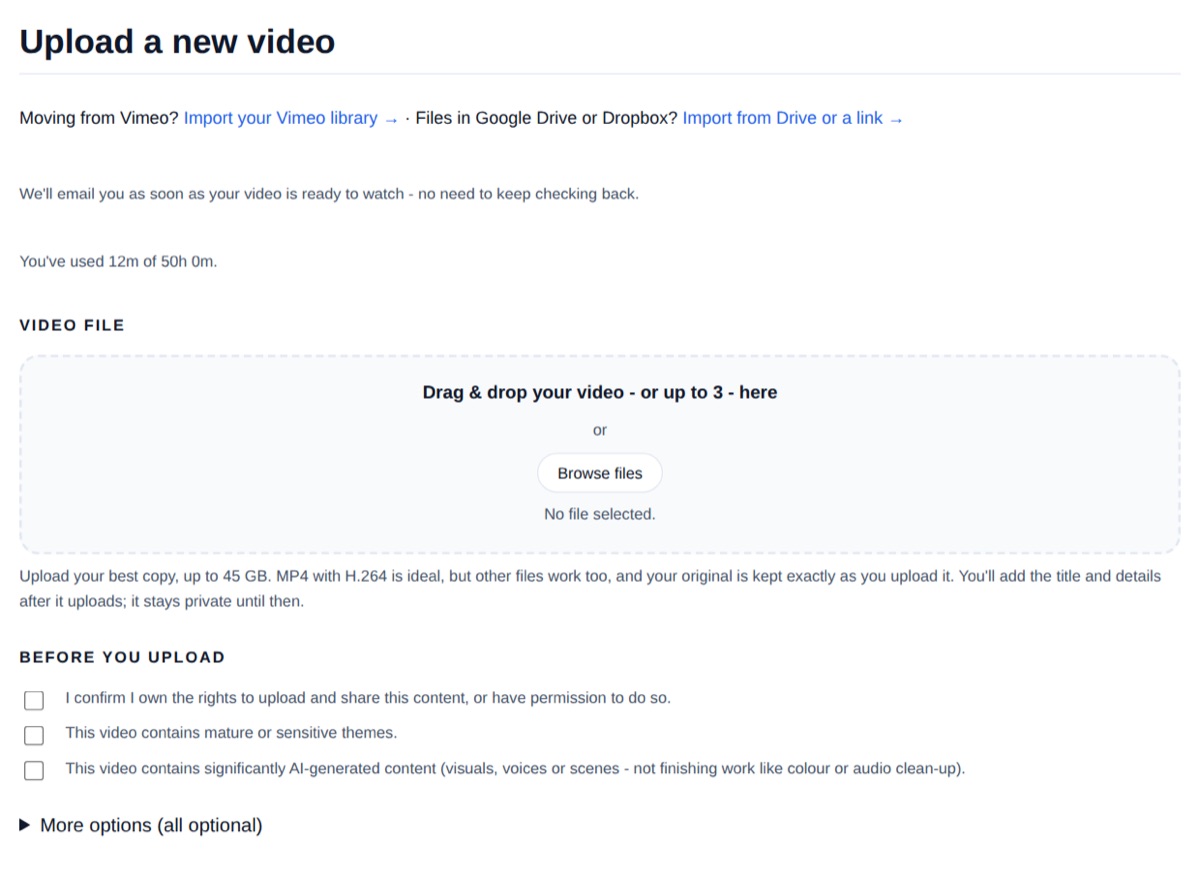
Select Upload at the top of any page. Drag your video onto the page, or choose Browse files. On the Creator plan you can add up to 3 videos at once, and up to 6 on Pro.
Under two minutes: uploading a film, adding a title and description, picking a picture, and choosing who can watch.
The video's script is available to download, so it can be translated for better understanding: as subtitles with timings (.srt) or as plain text (.txt).
What file to upload
Upload the best copy you have. The recommended settings are MP4, H.264, Rec.709, AAC stereo, 48 kHz, but other files are accepted too. Your original is kept at the exact quality you upload, including 4K, and is never changed. See Supported formats and encoding.
The largest file you can upload is 18 GB on Free, 45 GB on Creator and 70 GB on Pro. See Upload limits and quotas.
Before you upload
Tick to confirm you own the rights to the video or have permission to share it. This is required. Also tick if the video has mature or sensitive themes, or significant AI-generated content (visuals, voices or scenes).
More options (all optional)
Most people never need these. Select More options to see them:
- Genre - helps viewers understand the type of work.
- Add to a series or collection - puts the video in a collection on your public page. You can do this later from your library.
- Disable enhancement processing - turns off automatic clean-up filters.
- Audio track layout - leave this on Automatic unless you know how your master's audio tracks are laid out.
- Quality Optimization - a slow extra pass that finds the best quality setting for your video. See Quality Optimization.
- Archive only - store the original without making it watchable. See Archive mode.
If your connection drops
Keep the page open. The upload pauses and carries on by itself when you're back online, from where it stopped. If you close the page, open Upload again and choose the same file: Long Play recognises it and carries on instead of starting again.
After it uploads
You add the title, description and other details after the upload. The video stays private until its details are entered. Long Play emails you as soon as it's ready to watch. See What happens after you upload?
Files in Vimeo, Google Drive or Dropbox?
Use the links at the top of the Upload page: Importing your Vimeo library, or Importing from Google Drive, Dropbox or a link.