Importing from Google Drive, Dropbox or a link
If your videos are already in Google Drive or Dropbox, Long Play can fetch them for you. The file goes straight from there into Long Play, so nothing passes through your computer and you can close the page once the import is queued.
Under a minute: bringing your films across from Vimeo, YouTube, Google Drive, Dropbox or a link.
The video's script is available to download, so it can be translated for better understanding: as subtitles with timings (.srt) or as plain text (.txt).
Go to Upload and choose Import from Drive or a link, or open /me/import/files.
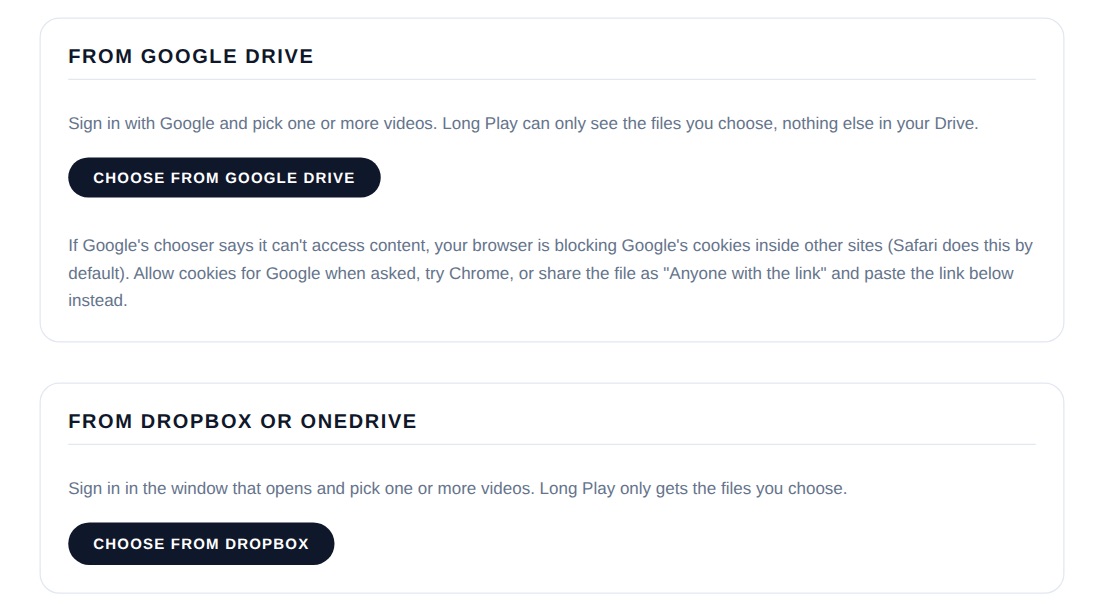
From Google Drive
- Select Choose from Google Drive and sign in with Google.
- Pick one or more videos in Google's file chooser.
- Long Play queues them and imports them in the background.
On iPhone and iPad, Google's chooser doesn't work in any browser, even after accepting Google's cookies, because Apple blocks them inside other sites, so the import page shows the link option there instead: in the Google Drive app, share the video as "Anyone with the link", copy the link and paste it into From a link. On a Mac, Safari does the same, so use Chrome or Firefox there, or a link.
Long Play can only see the files you pick, nothing else in your Drive. Google's permission lasts about an hour, so if you come back later you may be asked to sign in again.
From Dropbox
- Select Choose from Dropbox and sign in to Dropbox in the window that opens.
- Pick one or more videos.
- Long Play queues them and imports them in the background.
Long Play only gets the files you pick, nothing else in your Dropbox. The download links Dropbox gives Long Play last 4 hours, so if a long queue hasn't reached a file by then it will be marked Failed - just choose it again.
From a link
Paste one of these and select Import:
- A Dropbox share link
- A Google Drive share link, shared as "Anyone with the link"
- A WeTransfer link (see below)
- A direct download link from a storage service: OneDrive or SharePoint, Box, iCloud, Frame.io, MASV, Filemail, Smash, Hightail, pCloud, Sync, or cloud storage such as Amazon S3, Backblaze B2, Cloudflare R2, Wasabi, DigitalOcean Spaces or Google Cloud Storage
Links from other websites can't be imported - download the file and upload it instead, or contact us if your storage service isn't listed and we'll look at adding it. Links that open a sign-in page or a web page instead of the file won't work, and neither will a link to a copy of a film released elsewhere. If the file name isn't a good title, type one in the Title box.
WeTransfer links
Paste the link from your WeTransfer email (we.tl/... or wetransfer.com/downloads/...). Transfers with a single video work best; a transfer of several files arrives from WeTransfer as one ZIP, which can't be imported this way. WeTransfer links expire, usually after 7 days, so import before then. WeTransfer doesn't offer an official way for other sites to fetch transfers, so if it changes how its links work this can stop working - download the file and upload it instead if that happens.
What happens next
Each import shows in the queue on the same page as Queued, Importing, Done or Failed. When it's done, the video is in your library as Private and is processed like any upload - see What happens after you upload?. Imports go to the channel you're working in.
Limits
Imports follow the same rules as uploads: your plan's file size and video hours, videos under 3 hours, and, on a new Free account, the short wait before your first videos can go public. The Free plan imports one video at a time; Creator and Pro can queue several. A file that turns out not to be a video, or is over a limit, is removed and marked Failed with the reason.
Moving from Vimeo or YouTube instead? See Importing your Vimeo library or Importing your YouTube channel.