Crop
Crop removes black bars or unwanted edges from your video. It's available on all plans.
About a minute: opening Video fixes, testing a crop that removes black bars, and approving it.
The video's script is available to download, so it can be translated for better understanding: as subtitles with timings (.srt) or as plain text (.txt).
When to use it
- Your video has black bars on the top and bottom (letterboxing) or sides (pillarboxing) baked into the picture
- You want to reframe a shot by trimming the edges
- There's a thin black line or encoding artifact along one edge
Note: Crop is for content you own. Don't use it to remove watermarks or credits from third-party footage.
How to set crop values
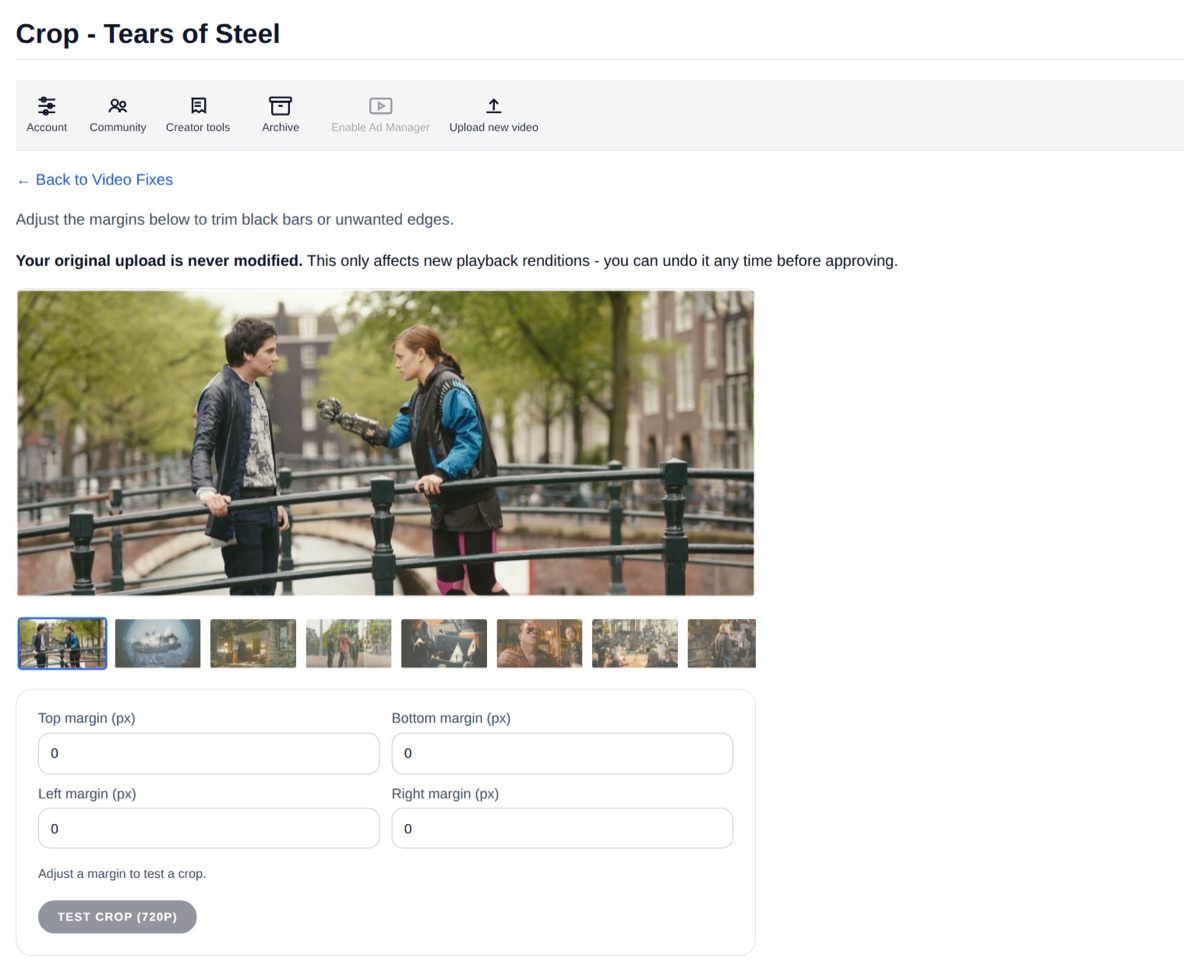
Enter the number of pixels to remove from each edge. Crop values apply to the original resolution of your source file.
If Long Play detected black bars at the time of upload, it will show the detected margins on the crop page as a starting point. You can use those values directly or adjust them.
A preview shows what the cropped frame will look like before you commit. Pick a different frame from the strip under the picture to check the crop on another shot, then select Test crop to make a short test clip.
No AI
Crop is a straightforward pixel geometry operation. No machine learning or AI is involved.
Tips
- Crop an even number of pixels from opposite sides when possible - this avoids odd-pixel-width artefacts in some players.
- The cropped dimensions must still be at least 128×128 pixels.
- For standard 16:9 letterboxing with 2.39:1 content, typical crop values are around 140px top and bottom on a 1080p source.